I remember reading a while back about something cool… Someone had re-created the home Active Directory Lab from The Cyber Mentor’s Practical Ethical Hacking course in Azure - Check that out here. I was pretty inspired and thought to myself: “Wow, that would be really handy!”. Then I read Rastamouse’s blog post about using Terraform to create Red Team Infrastructure on-demand, and marveled at “Infrastructure-as-Code”. Jeez, this is even cooler, I thought. Then last weekend I came across chvancooten’s CloudLabsAD - A fully automated deployment of Active Directory, an Elastic stack for logging, and an attack box. It uses BadBlood to populate the Active Directory like a real company, with misconfigurations to boot. That’s just incredibly handy, right? So I thought “Toby, what can you do that is going to be both useful and feasible for someone with no DevOps experience?”… And I came to the conclusion that re-building the Active Directory Labs from the Practical Ethical Hacking course in the cloud would be a good idea, but instead of doing it manually, I’d incorporate the techniques I’d read about from chvancooten and Rastamouse. If you’re here to get a vulnerable AD lab on demand, I recommend you go look at their code, it’s far more sophisticated than my attempt here. Consider this my initial foray into the world of DevOps.
In this post, I’ll show you how to set up Azure in your Kali Linux instance, get a free account with $200 (if you haven’t already), then we’ll download Terraform, and automate the creation of the lab in TCM Security’s course - the MARVEL domain. We’ll be mindful of security, exposing the public IP address of the lab to only allow access from our whitelisted IP, and we’ll use a NAT gateway to ensure that the outbound traffic is showing an alternative public IP. We’re doing this from Kali because if you’re following along from TCM Security’s Practical Ethical Hacking course it’s probably where you’re working from anyway!
The code uses Terraform to instantiate our resource group, add the necessary resources, and then after the provisioning of the Virtual Machines in the cloud, we use Ansible to push the required configurations out. Let’s get started!
Mapping our Design
It’s really important to have a high-level overview of what our required design looks like. Here is the blueprint, and also the eventual IP addresses, for you to refer to later when attacking the internal network.
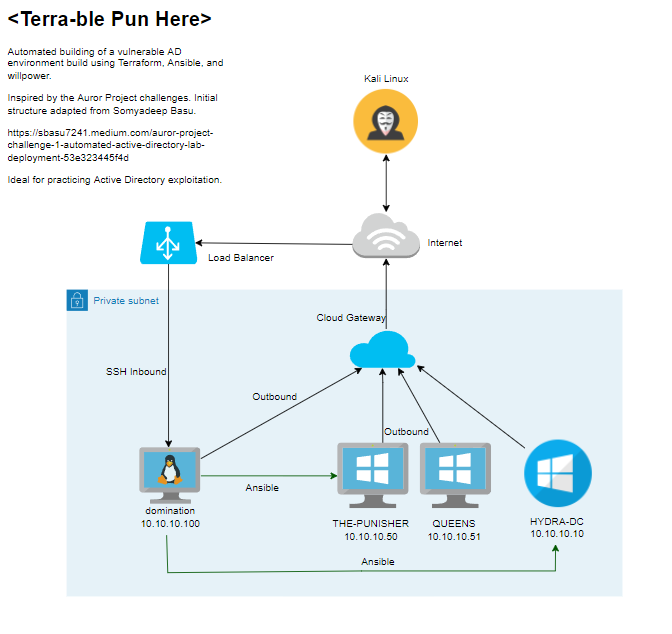
Design of the Network
Setting up Azure
Depending on what distribution and version you are using, you should alter the following command as necessary. Here are the versions available, and they will correspond to the version of Debian/Ubuntu you are using. For the purpose of this tutorial, you should note that some commands may differ slightly if you are not using the same OS as me. Once again, I am doing this on Debian 11 - Kali Linux specifically.
curl -sL https://aka.ms/InstallAzureCLIDeb | sudo DIST_CODE=bullseye bash
If you’re stuck, refer to the Azure CLI docs.
Create this file on the system: /etc/apt/preferences.d/azure-cli.pref.
Package: *
Pin: Release o=azure-cli bullseye
Pin-Priority: 600
Then perform a downgrade to use the Microsoft version rather than the Debian version.
sudo apt install azure-cli=2.36.0-1~bullseye
Running your original command again should now show your appId, displayName, password and tenant. These are private. Keep these safe. The Terraform official guide recommends setting them as environment variables.
ssh -D 1081 thanos@<public_ip>
Enter the password when prompted and you should now be on the jump box. Here you should have an internal IP, viewable by typing ip a of 10.10.10.100. You can see how to access the jump box using the screenshot below.
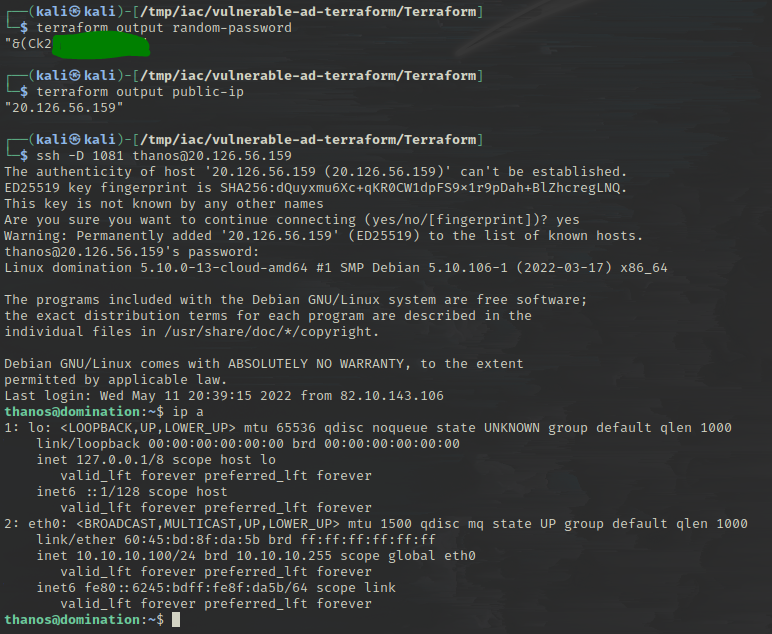
Logging into our infrastructure over SSH
Since we’ve proxied our traffic, you can now use most of your tools with proxychains on your host to reach the internal network. You can try this by typing:
proxychains smbclient -L \\\\10.10.10.10\\
This should allow your Kali box (External) to access port 445 of the Domain Controller (Internal) using proxychains! Neat. However, it’s also possible to just run it from your jump box directly, as proxying traffic adds unnecessary latency.
Running an nmap on the domain controller at 10.10.10.10 should also be possible. You can now download tools and perform attacks as you would do from your host machine from the jump box itself - It has internet for you to download everything you need, such as the impacket toolkit.
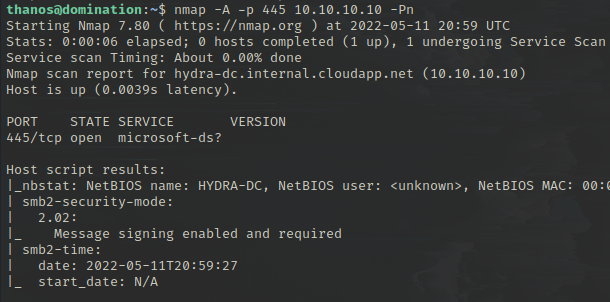
Running an Nmap against the DC
Marvel Domain Overview
So with everything finished, I’ll just leave a quick overview of the domain so you can navigate it, though you can see all the details in the code on GitHub. The password for the jump box account thanos gets generated randomly when the code is run - so you’ll have to access it as previously discussed using terraform output random-password.
The user accounts set up on the domain all have their passwords stored in the description, aside from tstark who is the Domain Administrator. His password is the same as terraform output random-password and they are listed below:
- marvel.local/fcastle : Password123!
- marvel.local/pparker : Password1234!
- marvel.local/tstark (Domain Administrator) :
terraform output random-password - marvel.local/SQL-SVC (Kerberoastable User) : Passw0rd123
The computer accounts are:
- HYDRA-DC.marvel.local - 10.10.10.10
- THE-PUNISHER.marvel.local - 10.10.10.50
- QUEENS.marvel.local - 10.10.10.51
- domination - 10.10.10.100 (Jump box)
As you can see above, I added a Kerberoastable user to give an initial vulnerability to practice. You could abuse this with impacket:
GetUserSPNs.py 'marvel.local/fcastle:Password123!' -dc-ip 10.10.10.10 -request
This should provide the hash of the SQL-SVC account, which you could take to crack offline.
If you want to RDP into one of the Windows machines, we can do that over our proxy. This can be done by any user.
proxychains xfreerdp /v:10.10.10.50 /u:tstark /p:"<password>" /d:MARVEL /cert-ignore
Destroy your Infrastructure
When you’re done working for the day, you have a few options, and ensure you choose one to avoid running out of your free credit/spending loads. To get rid of your infrastructure, in the same directory that you ran terraform init, you can run terraform destroy which should destroy everything that was created. If you’re struggling, worried, or there is an issue with terraform destroying a resource, you can go to https://portal.azure.com/, then click on “All Resources” in the sidebar.
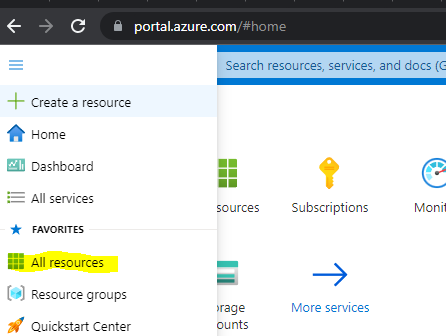
All Resources
Highlight all the resources and then hit delete.
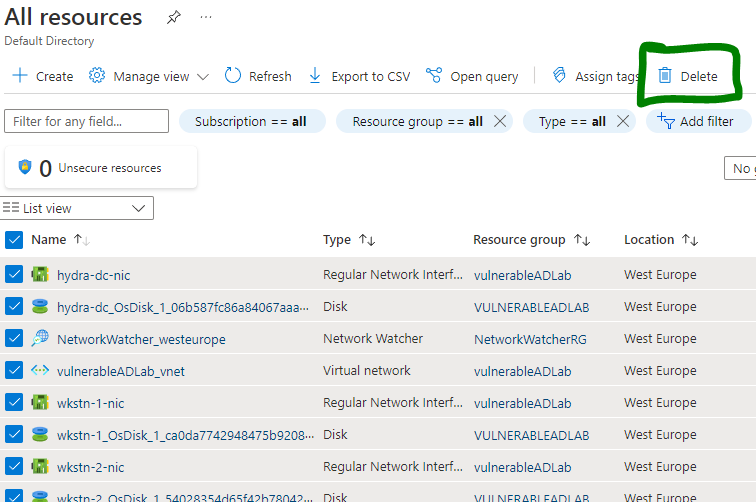
Manually deleting resources
If this still doesn’t work, I’d advise contacting MS support or re-running terraform apply in the same directory and then terraform destroy again to see if it sorts itself out. This has generally been the case for me on a couple of occasions.
Alternatively, you can just open up the resources in your Azure portal and click on “Stop” when you’re not using them!
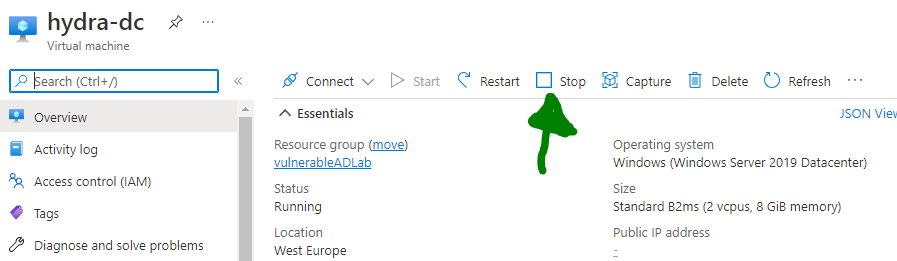
Stopping a VM
Wrapping Up
If you’re still here, nice one! You should hopefully have an automated Active Directory deployment system in place now and understand how to spin it up and destroy it whenever you need to. Whether it’s actually useful to you, who knows! I personally prefer just being able to spin stuff up in the cloud for testing rather than messing around with VMs, but the trade-off over time is that it costs. However, with the free Azure credit on a Pay-as-you-Go account for 30 days, it’s well worth a try. My forays into DevOps stop here whilst I dive back into pentesting practice over the summer, so it may be a little while between posts again! Take it easy.